
Auto post
Compose one post with room photos and let the app post it to Facebook groups one after another with your profiles, with spacing, duplicate posting rules, an auto-run schedule and several profiles running in parallel.
Auto post publishes one post (text, images, colored background) to many Facebook groups, with a random pause between groups the way a real person would. The post runs inside your profile, so it uses that profile's own Facebook sign-in and proxy. Use it when you need to spread room offers across a few dozen groups every day without clicking by hand.
The feature is for seller accounts or the VIP plan. Accounts without access see a Cần quyền Automations (Automations access required) chip and a View plans button (see Gói và suất máy). Auto post only runs on NextCore Chromium, not on Firefox profiles.
Since 0.3.166 this screen has an English version: SETTINGS › Appearance and screen privacy › Language › English.
Where to open it
Sidebar › NEXTCORE AUTOMATIONS › the Auto post row › Open. The Auto seeding row opens the same screen, with content written by AI separately for each group.
The first screen is the list of composed posts, shown like posts in a Facebook group. Each card shows the status of the latest run: «Draft», «Posting 12/37», «Posted 35/37 · 2 errors», «Stopped because Facebook blocked…». Click Edit post or click the card to open the Compose post screen.
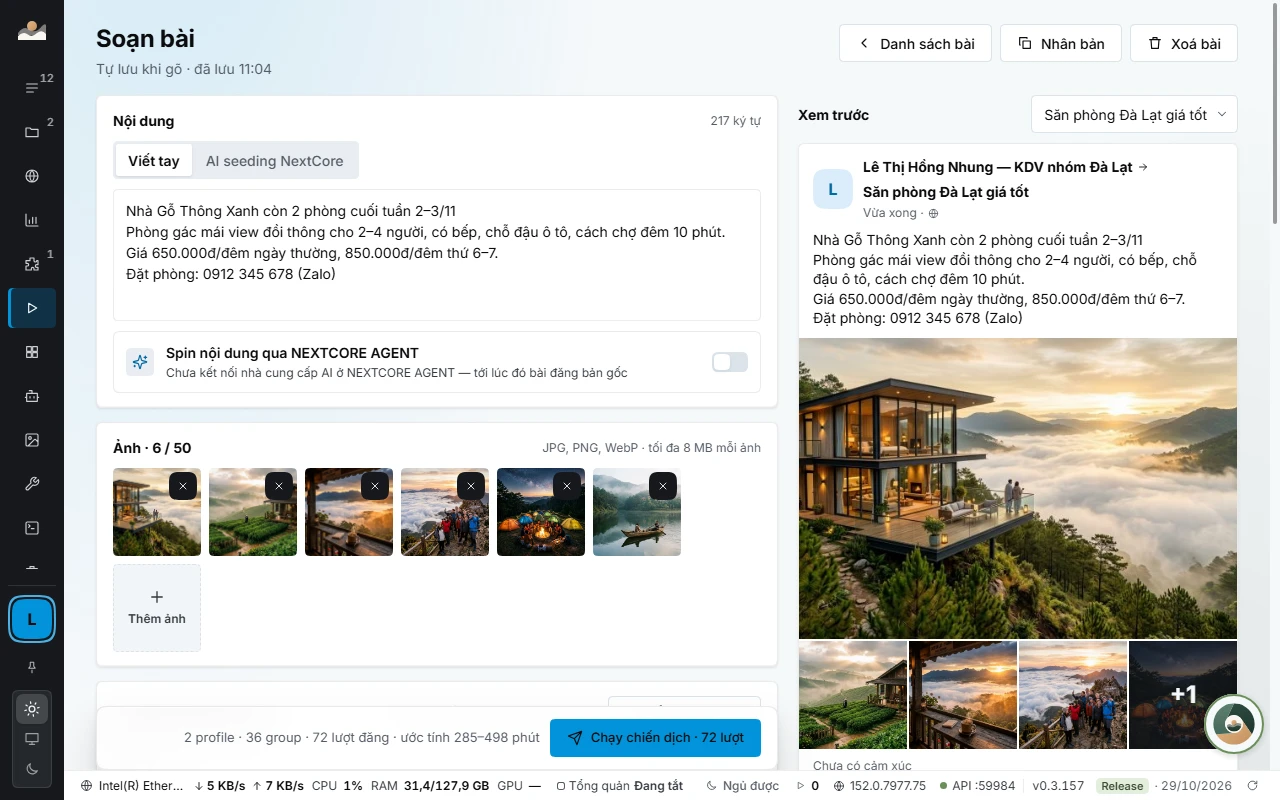
Compose post
Click Compose new post (or Compose first post when there are none yet). The post saves itself as you type.
- Content: choose Write manually and type the price, available dates and how to book. Or choose AI seeding NextCore (see the section below).
- Images: click Add photos. Up to 50 images, JPG, PNG or WebP, each up to 8 MB. If an image cannot be added, the app shows its name and the reason.
- Post background: choose a colored background. Facebook only allows a background when the post is no longer than 130 characters and has no images.
- Who posts · where to post: see the section below.
- Schedule auto run and How it runs: see the sections below.
- Click the button in the bar stuck to the bottom of the screen.
The Preview panel on the right renders the post the way it looks in a Facebook group: the poster, the group name, text cut off with See more, and the image grid. If the post has several groups, choose one in the Preview group box.
The top of the screen has Post list, Duplicate (creates an identical new post; the copy's auto-run schedule starts off) and Delete post. Deleting a post removes the post, its images and its run history on the machine; posts already on Facebook stay on Facebook. A post is locked for editing while a run is in progress.
Who posts · where to post
- Click Select profiles to post with and tick the profiles. Each post takes up to 50 profiles.
- Click Check accounts: the app reads the Facebook account of each profile (a closed profile opens for a few seconds and closes again). Each row shows the account name and a Post as box for choosing the personal profile or a Fanpage that account manages.
- Under Post to, turn on Group and/or Wall:
- Group: click Select groups (see the section below). If the profile is not yet a member, the app clicks Join group itself; a private group must approve the request before you can post.
- Wall: also post once to the personal profile or Fanpage chosen in Post as. For a personal profile choose Public or Friends; a Fanpage is always Public. If the account only has a personal profile and you turn on Wall, the app explains how to create a Fanpage or get access to one on Facebook, with a Check accounts button to read it again once you have a Fanpage.
- Split (with 2 or more profiles): Each profile posts to every group, or Split groups evenly across profiles (each group gets the post from only one profile).
The top of the block shows the calculation, for example «3 profiles × (24 groups + wall) = 75 posts». For each post the app checks the posting name again; if it does not match, it skips that post rather than posting under a different name.
A profile row reports Cannot post with an Open profile button when the Facebook account has signed out. Open the profile, sign in again, then click check again.
To assign several profiles to a post quickly from PROFILE MANAGER: select the profiles, right-click › Add to Auto post…, then choose an existing post or Bài mới (tạo từ N profile này) (New post (created from these N profiles)).
Select groups
The Pick groups to post to dialog has three sources in the Source row:
- GroupCrawl: the group store on this machine, see NEXTCORE GROUPCRAWL.
- GroupInvest: groups NextCore operates, included in the VIP plan.
- Both: the union of the two sources; a group in both is counted once.
Search by name, filter by Area, tick groups one by one or Select all N groups shown, then click Use N groups. Each group shows its member count and posts per day if the app knows them. The source is remembered per post; switching source does not drop groups you already picked.
AI seeding NextCore
Choose AI seeding NextCore in the Content block. Each group gets its own AI-written post based on the group name and area. The post is generated when that group's turn comes; posting to that group again reuses the same generated post.
- My prompt (optional), up to 800 characters: adjusts tone and details, for example «friendly tone, mention it is near Da Lat market, no emoji». It cannot override the rules about matching the group and the area.
- Try generating 1 post: writes a test post for the first selected group. The sample is not posted; click Generate another to see a different version.
- The server generates up to 40 posts every 10 minutes. If you pick more than 40 groups, the app adds the extra time to its estimate for the whole run.
- If you turn on Wall together with AI seeding, the manual content box is used for the wall post, because AI seeding only writes posts for groups.
Content spin
For a Write manually post, turn on Spin content via NEXTCORE AGENT so each group gets a variant with the same meaning, keeping the price, phone number, dates and links unchanged. Light changes wording and keeps the structure; Medium changes the opening sentence and the phrasing.
In the preview panel, choose the Variant tab and then Try variant to see a sample (the sample is not saved). Real variants are created once during the run and saved per group. Spin needs an AI provider in NEXTCORE AGENT; if none is connected, the original post is used.
Schedule auto run
Turn on Start automatically on schedule, add Run times (the time box › Add time, for example 07:30 and 19:30) and choose Days of the week. At the scheduled time the app opens the profiles and runs. The block shows the time of the next run, for example «Next run 19:30 today».
Note: The app must be open for the schedule to run. Turn on Chạy nền ở khay (Run in the tray) in SETTINGS if you want to close the window and keep the schedule running (see Trạm và nhiều máy).
How it runs
| Row | Meaning |
|---|---|
| Rest between two groups | Picked at random within a range, set by dragging both ends of the slider, 1 to 120 minutes |
| Posting order | In order following the list, or Random each run |
| Duplicate group posting | Allow duplicate posts · No reposting on the same day · At least N hours apart · Never repost to a group already posted to |
| Run in parallel | How many profiles post at once, 0 to 10. At 0 the app decides based on the number of profiles in the post and the machine's RAM. Applies to every post on the machine; the app arranges the windows |
| Rotate profiles | Each profile posts N posts (up to 20), then closes and hands over to a waiting profile. Only shown when the post has more profiles than the parallel limit |
| Each Facebook account posts to at most … groups per day | 0 to 60, where 0 means no limit. Counts every post and every profile that uses the same account. Once the limit is reached, the remaining groups are «Skipped» and wait for tomorrow |
| Each group: at most … posts / account / day | 0 to 10. If one account posts to the same group beyond the limit, that group is «Skipped» |
| Stop on consecutive errors | After 2, 3 or 5 failed groups in a row, stop that profile and move to the next profile |
| Warm up between posts | Browse Facebook during the pause between two groups and after posting finishes. Choose sources: Bảng tin (News feed), Reel, Group trong GROUP CRAWL (Groups in GROUP CRAWL), GroupInvest NextCore, Thông báo (Notifications) |
| Auto repost every | A Post ⇄ Warm-up loop, repeated every N hours (1 to 336). Replaces the auto-run schedule when on |
| Post anonymously | The post shows no name and goes into the admin approval queue. Groups that do not allow anonymous posts report an error |
| Dry run | Opens each group, pastes the text and images into the post box, then stops. Never clicks Post and never clicks join |
The bottom bar summarizes the number of profiles, the number of groups and the number of groups skipped by the duplicate posting rule. The button changes with the setup: Post to N groups, Run campaign · N runs (several profiles) or Dry run N groups.
Track a posting run
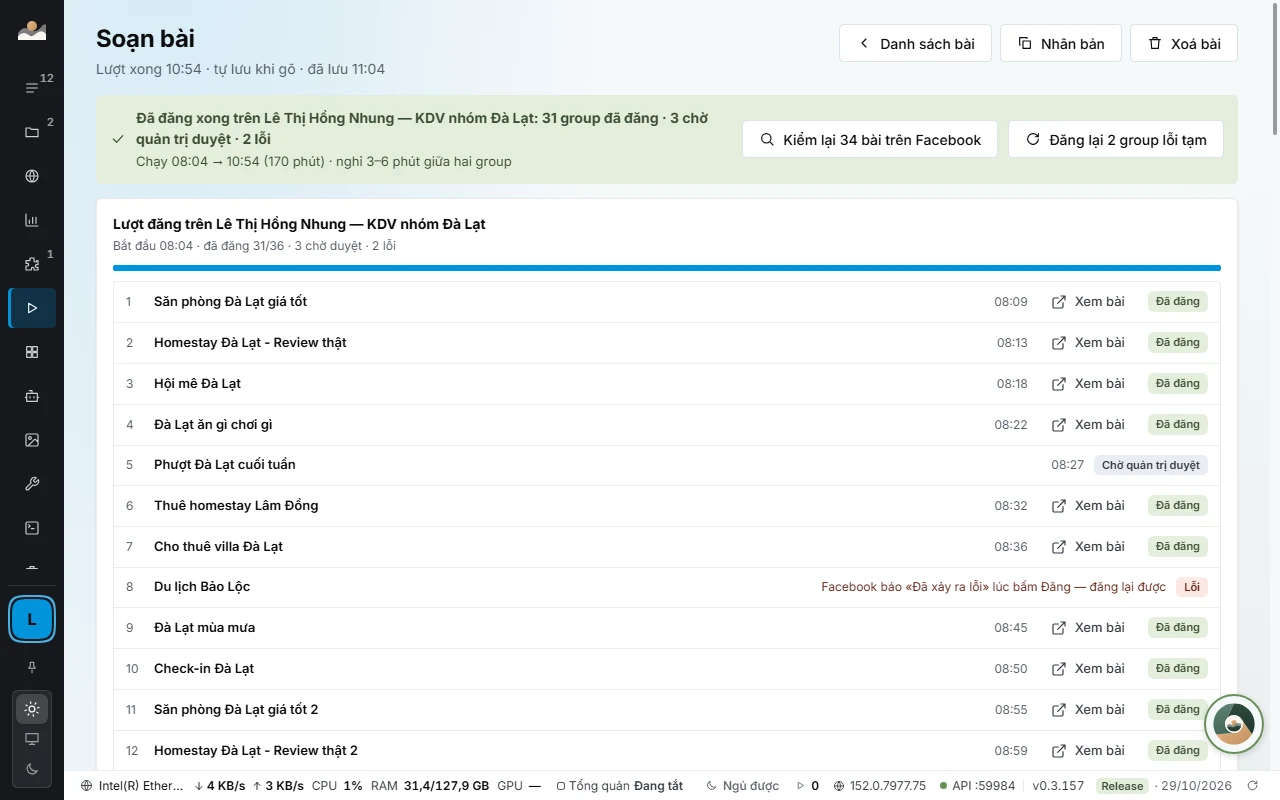
While a run is in progress, the compose screen turns into a queue: one row per group, with the status Queued, Pausing, Posting, Posted, Awaiting admin approval, Error or Skipped. A posted row has View post; a failed row has Open group. The Stop run button stops immediately.
On the list screen, the Running block shows what each profile is doing Now (which group it is posting to, pausing, warming up, waiting for its turn) and which group is Next. Click Open campaign to go to that post.
When a run finishes, the run card has:
- Recheck N posts on Facebook: opens each post to find out whether posts awaiting approval have been approved and which posts have been removed.
- Repost N groups with temporary errors.
- Open group to join: opens groups you need to request to join yourself.
- Rerun N unposted groups: when the run stopped partway.
Common errors
- Facebook temporarily blocked posting on «profile»: the app stops the whole run and does not retry automatically. Wait at least 24 hours, or click Rerun N unposted groups on another profile.
- All N groups are excluded for this profile by the duplicate-group posting rule: the profile already posted to these groups within the window the rule forbids. Relax Duplicate group posting or pick other groups.
- No profile is free yet: the number of running profiles has hit the Run in parallel cap. The post starts when a profile finishes its task.
- Profile is open in Firefox: Auto post only runs on NextCore Chromium.
- The GROUP CRAWL store on this machine is empty: find groups in NEXTCORE GROUPCRAWL first, or switch the source to GroupInvest.
- Không kết nối được máy chủ NextCore để nhận truy vấn đăng bài (Cannot connect to the NextCore server to get the posting query) or Máy chủ chưa cấp truy vấn đăng bài (HTTP …) (The server has not issued the posting query (HTTP …)): since version 0.3.156 the app gets the way to call Facebook from the NextCore server, tied to your account. Check the network, sign in to NextCore again if the app says the session expired, then run again. A run in progress stops with this reason on each group.
- The next round will skip groups just posted to because of the … rule: the Auto repost every interval is shorter than the Duplicate group posting rule allows. Increase the auto repost hours or relax the duplicate posting rule.
See also: NEXTCORE AUTOMATIONS · Auto warm-up · Lưu lượng proxy.
Language
Since 0.3.172, the Auto post screen shows English when you choose English in Cài đặt › Giao diện (Settings › Appearance), or choose Use system setting on a machine that uses English. Content you enter and data taken from Facebook stay in their original language.